Products, quantity, and amount: the sale is entered on one screen. When you confirm it, stock is deducted and the installments enter the financial module — and the invoice comes straight from the sale, with nothing to type twice.


From entering the sale to the invoice, all in the same system where you manage stock and finances.
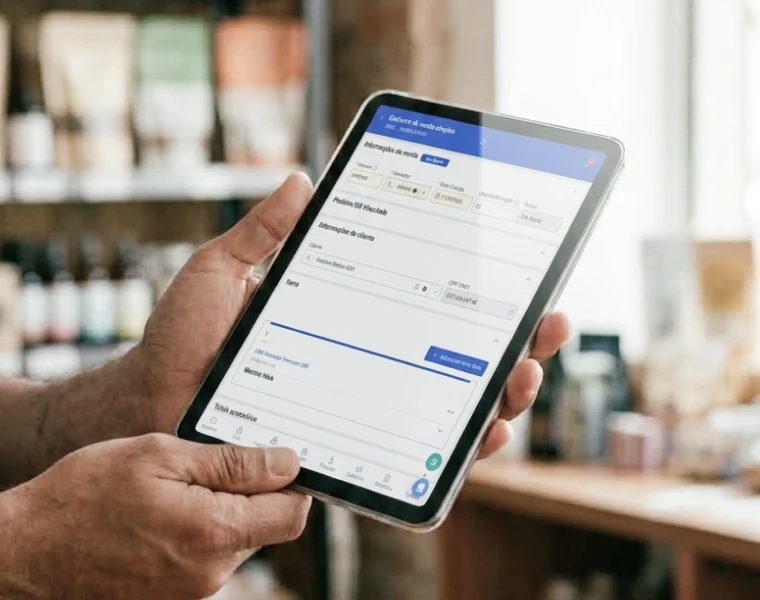
In Menu » Issue Simple Sales, click New and enter the products, the quantity sold, and the amount. Adding a customer is optional.
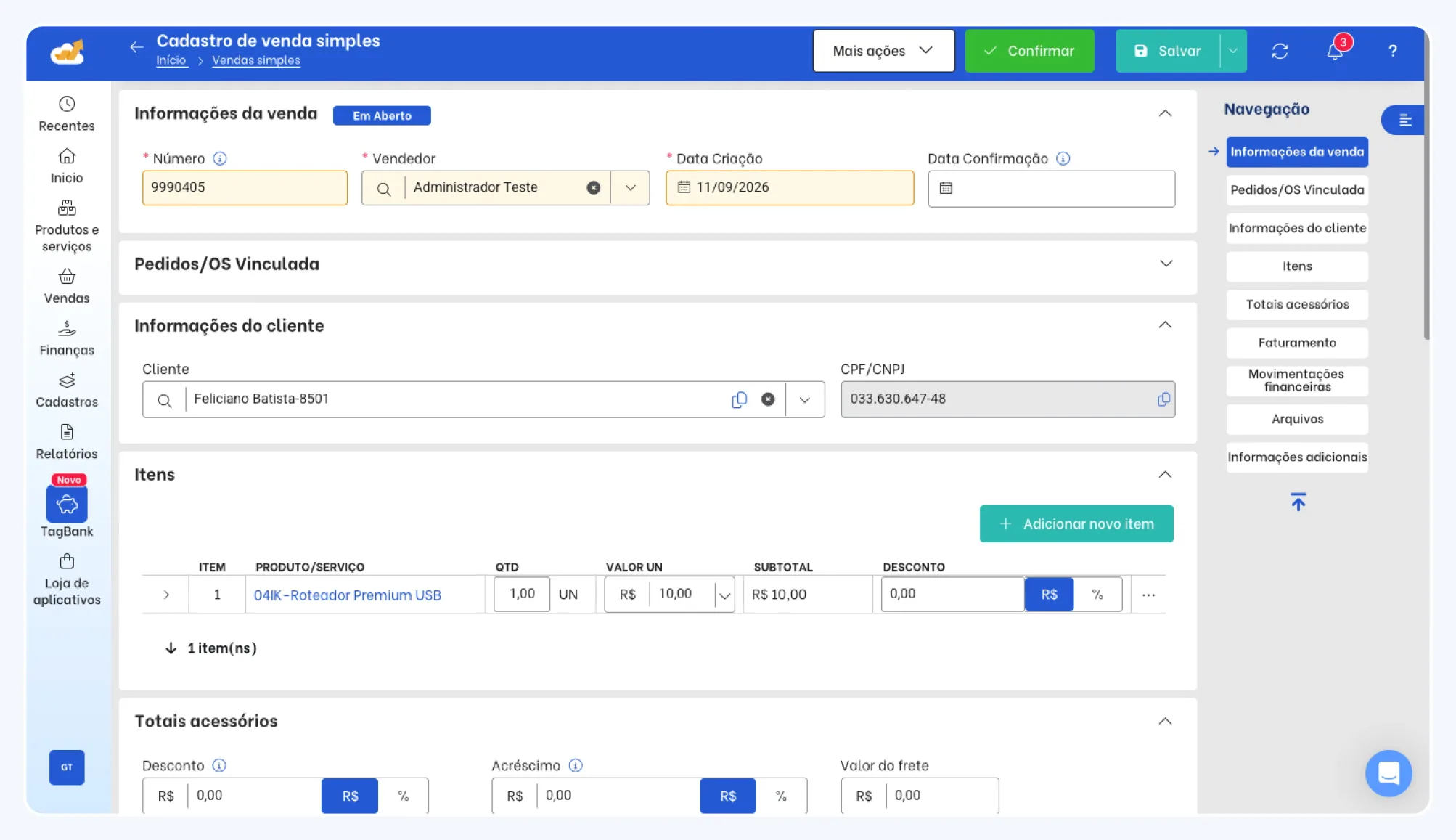
In Menu » Issue Simple Sales, click New and enter the products, the quantity sold, and the amount. Adding a customer is optional.
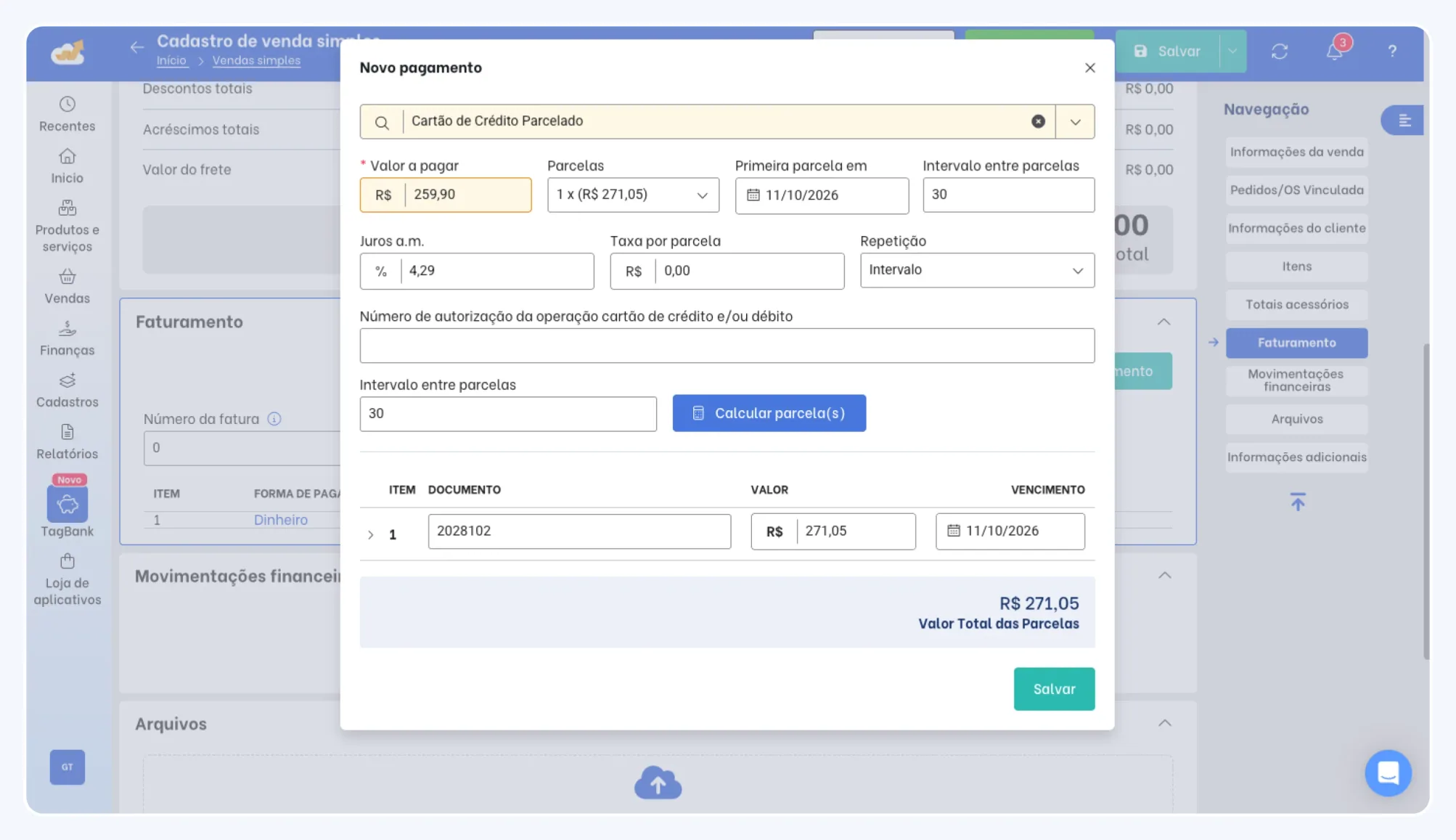
In the Billing tab, you set the payment method — and the system opens Installment Details so you can finalize the amounts.
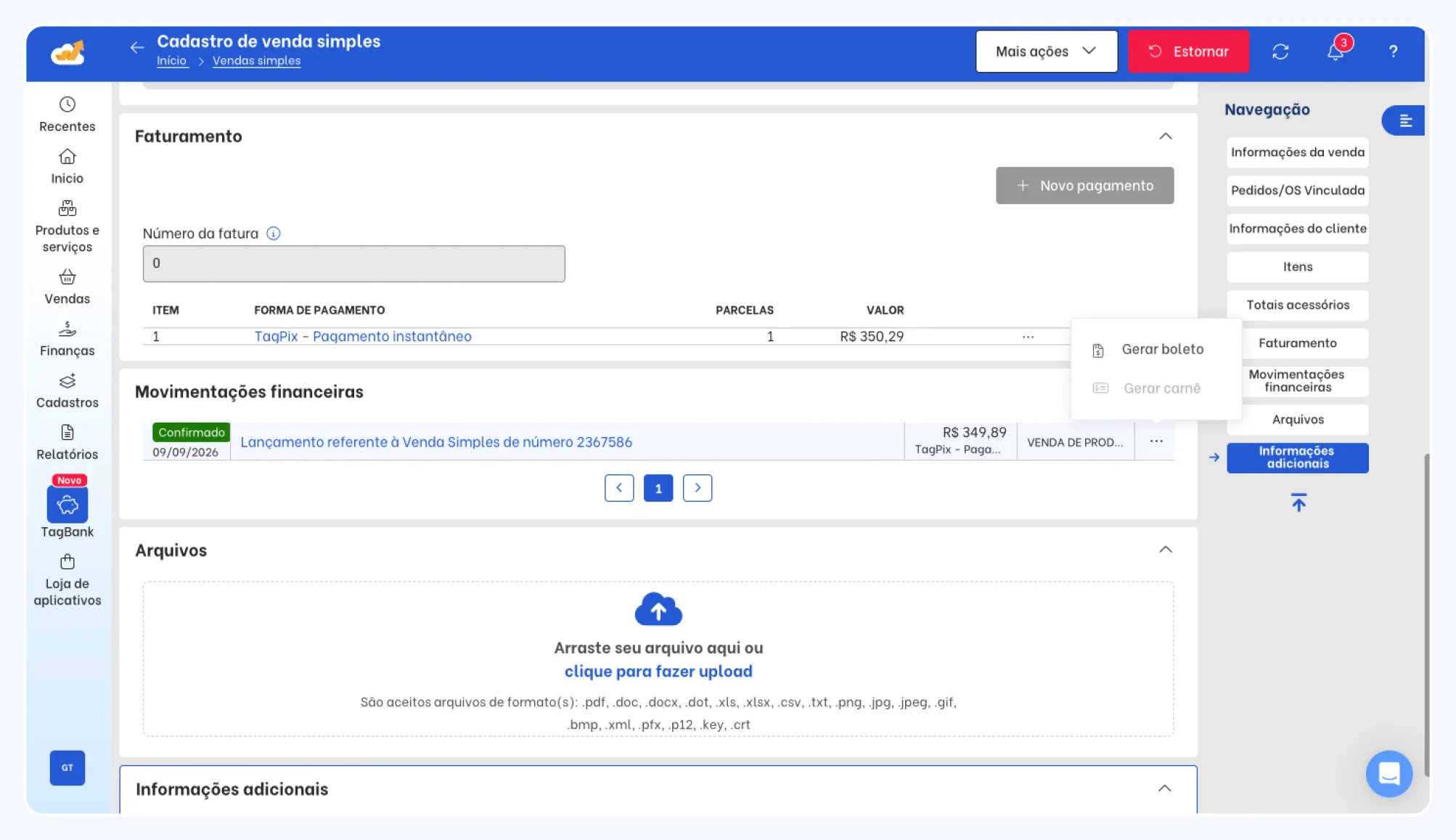
A confirmed sale is a finished sale: the items entered are deducted from stock, and installments are created in the financial module.
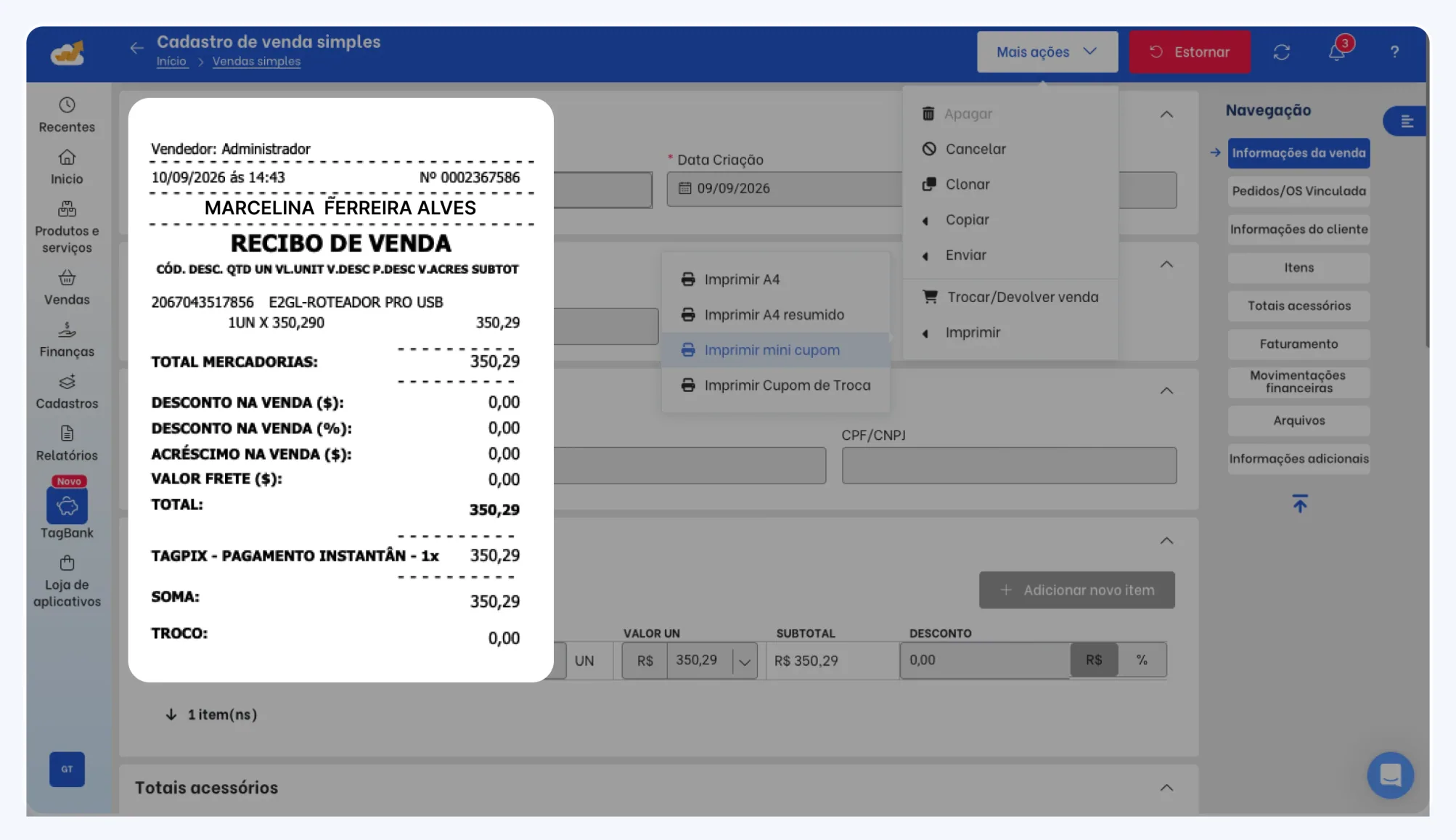
The sale can be printed on A4 paper or a mini receipt, sent by email, or sent by WhatsApp from the More Actions menu.
From More Actions, you copy the sale to NF-e, NFC-e, or NFS-e — the items entered on the sale carry straight over to the invoice.
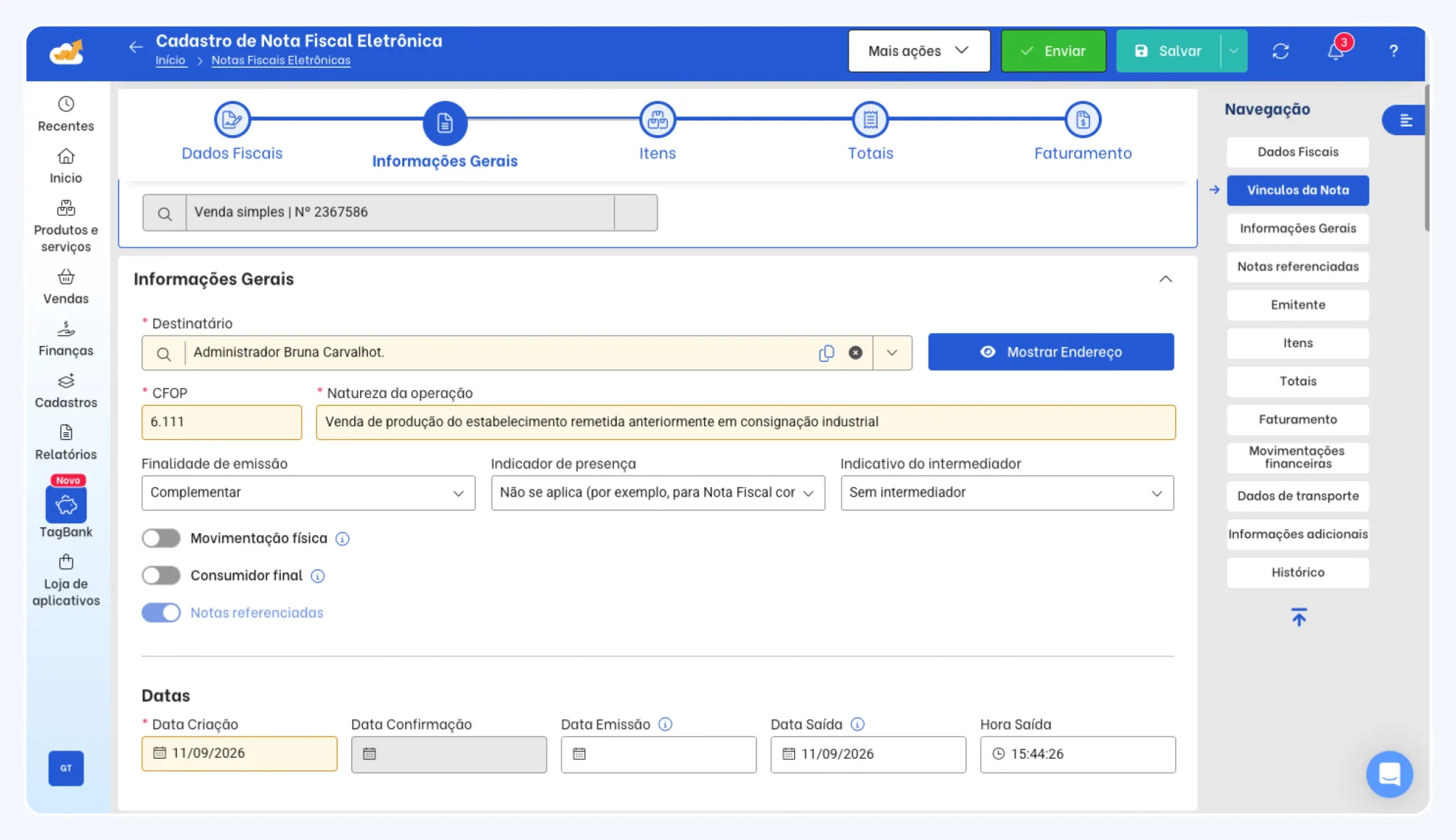
From creating the sale to the installment in the financial module, every step happens right inside the Simple Sale screen.
1
In Issue Simple Sales, click New and enter products, quantity, and amount.
2
Payment method and Installment Details: amount paid, installments, and due dates.
3
Confirming finishes the sale and deducts stock for the items entered.
4
The financial entry is available under accounts payable and receivable.
You set the amount paid, the number of installments, and the due date in Installment Details. When you confirm the sale, each installment enters the financial module as an entry — green when paid, red when pending.
Enter the order number, and the products and payment are already filled in.
Sales paid by payment book or bank slip can be printed straight from the sale.
Print on A4 paper or a mini receipt, or send it by email and WhatsApp.
Installments
Size and color grids with no side spreadsheet.
Começar
Piqué T-Shirt
Color . Yellow







It deducts stock, creates the installments in the financial module, and stays available to reverse, clone, or turn into an invoice.
Every installment created on a sale becomes a financial entry. Green indicator: paid. Red: pending.
The items entered on the sale come out of the balance the moment you confirm — no one has to adjust stock by hand.

A reversal brings a confirmed sale back for you to redo it. Cancellation is only possible on an already confirmed sale.

In More Actions, cloning creates an identical sale — handy for a customer who repeats the same order.

The problem isn't the order pad. It's that a sale jotted down on paper doesn't deduct stock, doesn't collect the installment, and leaves no receipt.
You type the same sale again at the end of the day
The agreed installment lives in someone's memory
The stock balance stays out of date
A receipt only if you write it by hand
No history to look up the sale later
Products, quantity, and amount on one screen
Installments with amount and due date in the financial module
Confirming the sale deducts stock instantly
Receipt in A4, mini receipt, email, or WhatsApp
Every sale on record, with reversal and cloning

 Safira Plan
“I used to jot the sale down on a notepad and copy it all into the ledger at night. Now the sale comes out with a receipt already — stock is deducted and the installments show up in the financial module without me typing it all again.”
Registered it as a simple sale and the customer asked for an invoice? From More Actions, you copy the sale to NF-e, NFC-e, or NFS-e — without entering the products again.
Open the sale and go to More Actions
Choose NF-e, NFC-e, or NFS-e
The items from the sale carry straight over to the invoice
Use TagPlus in your store, add your products, and choose a plan once you know what you need.